Thursday, May 7, 2015

Debian Jessie Host Setup for Embedded Linux Development Part 2

This is a continuation of Debian Jessie Host Setup for Embedded Linux Development Part 1, it covers installation of some additional host software necessary for linux cross development.   Part 1 covers only a minimal install.  This post is applies to a generic embedded Linux development system.

If you are targeting the Beaglebone Black, there are a few additional tutorial posts.  Part 3 covers Debian Host Cross-Compiler Setup.  Part 4 continues with building the u-boot bootloader, the Linux kernel and preparing a Debian Jessie root filesystem for the BeagleBone Black.  Part 5 goes through the steps to create a micro SD image from your builds to and copying it to eMMC.  Part 6 shows how to set up remote debugging in eclipse using gdb for an application.

2 Debian Host Software Setup


2.1 Serial Port Setup for Linux Console Access


Log in to the user account and open a Terminal Emulator.
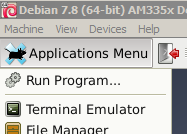


Use the su command in the terminal to login to the root account.  For the password prompt use the root password.
user@debian:~$ su -
Password:
root@debian#


Install the minicom program to access the serial port and the target console (with a USB to serial device).


root@debian# apt-get install minicom


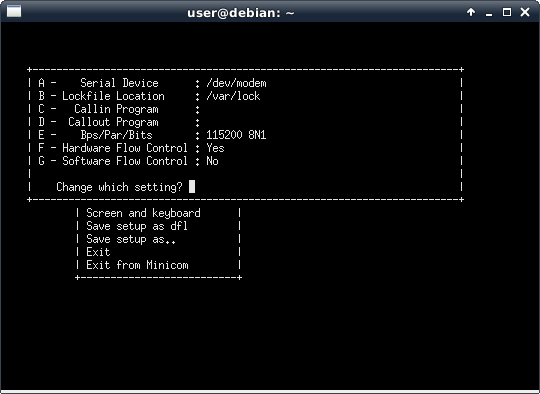
Minicom will have hardware flow control enabled by default, you will need to turn that off first thing.
root@debian# minicom --setup

41 configure minicom 1.png
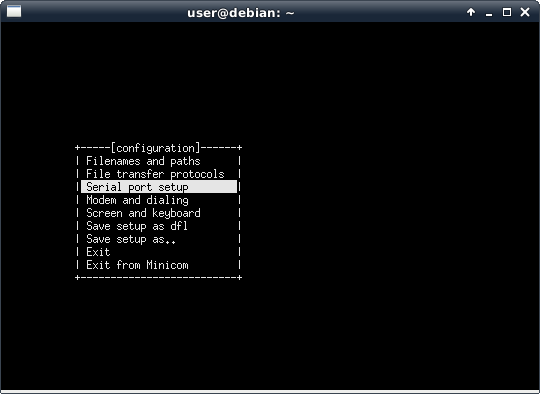
Use the arrow keys to Select Serial port setup and press ENTER.

41 configure minicom 2.png
Toggle the flow control settings by pressing 'f' so they are both set to 'No'
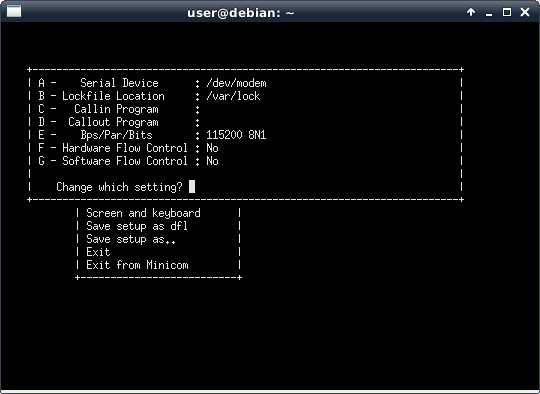
41 configure minicom 3.png
Hit them ESC key to exit the menu.


Use the arrow keys to select save the setup as default.
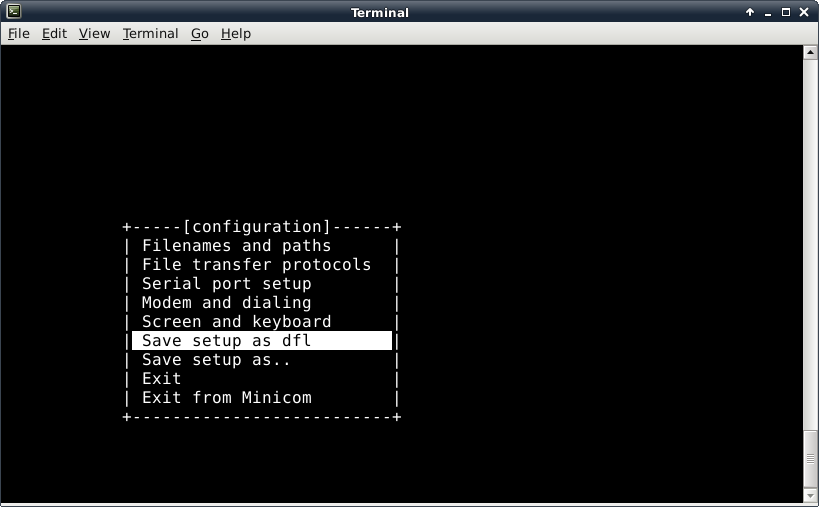
42 save setup as default.png
Press enter, then arrow down to ‘Exit from Minicom’ and press enter.  You can ignore the error message about /dev/modem if you see it.


A USB-to-serial device will be used to connect to the target.  For the BeagleBone Black use an FTDI cable, part number TTL-232R-3V3, available at digikey.com (Digi-Key part number 768-1015-ND) and a few other distributors. Adafruit also has a compatible USB-to-serial cable with transparent plastic so you can see the rx and tx LEDs.


You need to see what path it was assigned.  You can do that with the dmesg command.


root@debian# dmesg | grep ttyUSB
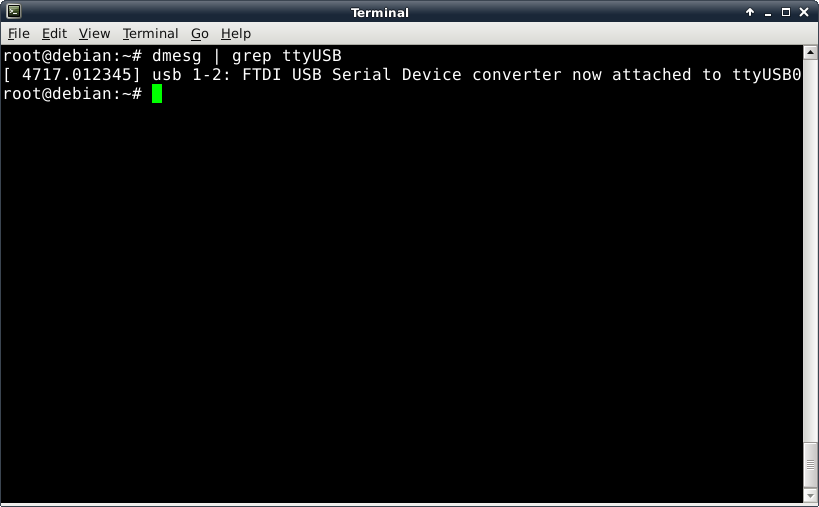
45 dmesg grep tty.png


The command shows that it can be accessed at /dev/ttyUSB0.  Use this with minicom’s -D option.


root@debian# minicom -D /dev/ttyUSB0
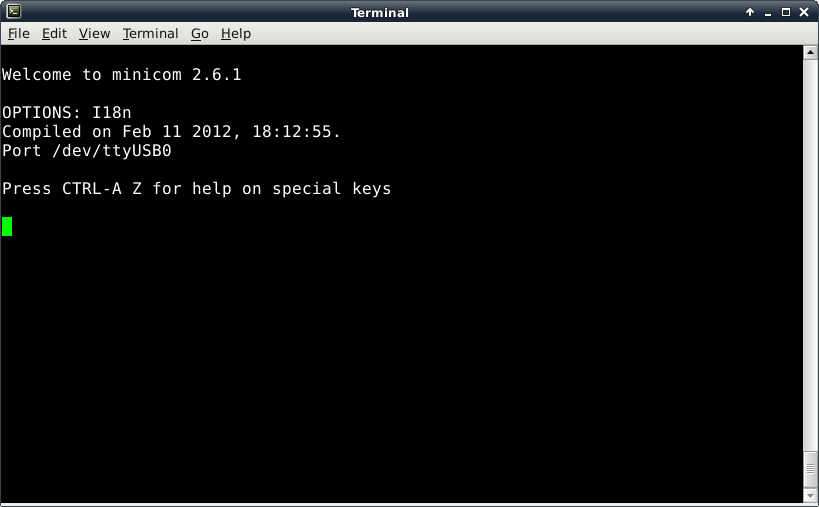

46 minicom welcome.png


If you now connect a BeagleBone Black connected and power it up you will see boot messages and a login prompt.  If you don’t have one set up yet skip to the next section.
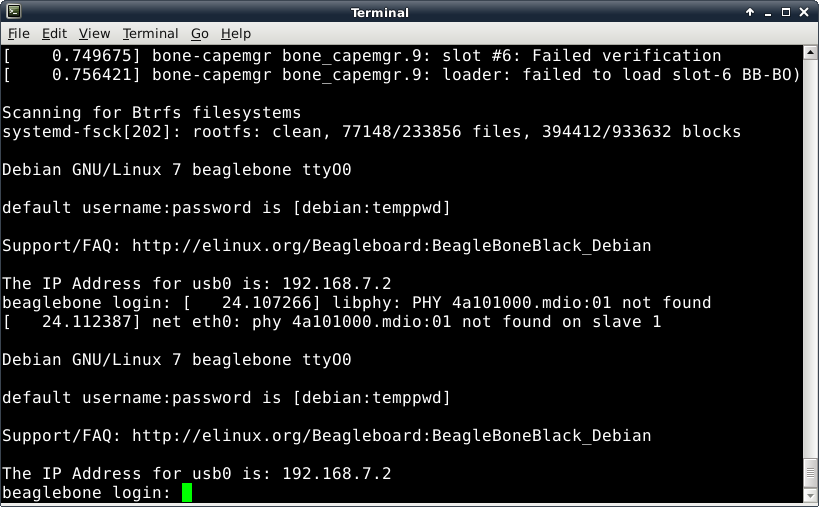
47 minicom BBB.png
Log in with the shown username password (debian and temppd).  Shutdown the Beaglebone with the following before  disconnecting power.
debian@beaglebone:~$ sudo shutdown -h now


To exit minicom type CONTROL-A then press Q, it will prompt to leave without reset, just hit ENTER for the default, .

2.2 Install Development Tools and Utilities


Install git to retrieve source files from the internet for the Linux Kernel and the bootloader.
root@debian# apt-get install git git-gui gitk


The sudo program is used by some scripts and eclipse for remote debug.  It performs commands as if you were logged in as root.
root@debian# apt-get install sudo


Replace the hightlighted word 'user' in the next command with your development username (not root).  For example, if you logged in as joe, the command will be 'adduser joe sudo'.
root@debian# adduser user sudo


The user that was added must log out completely and log in again for the adduser command to take effect.


To use sudo, just enter the user password when prompted (not root’s password).  You can test it by listing the /root directory.
user@debian:~$ ls /root
ls: cannot open directory /root: Permission denied
user@debian:~$ sudo ls /root
[sudo] password for user:
Desktop  Documents  Downloads  Music  Pictures  Public  Templates  Videos


Debian Jessie Host Setup for Embedded Linux Development Part 1

This post details how to set up a Debian Jessie host platform for cross development for Embedded Linux.  This will be most useful for target platforms like the Beaglebone Black or Raspberry Pi that will run debian or Raspbian.  The instructions for part 1 show how to install Linux on a Windows computer using a VirtualBox virtual machine and could apply to anyone installing Linux in VirtualBox.  The instructions continue on to the next post, Debian Jessie Host Setup for Embedded Linux Development Part 2 .  There are additional posts that apply to Beaglebone Black development; Debian Jessie Host Setup for Embedded Linux Development Part 3 - BeagleBone Black , Beaglebone Black Development Part 4 - Bootloader, Linux Kernel and Filesystem, BeagleBone Black Development Part 5 - Installing Linux to eMMC using Micro SD, BeagleBone Black Development Part 6 - Remote Application Debugging With Eclipse .

I have been using Debian virtual machines for embedded Linux cross-development for the past few years in my consulting projects.  My clients often need to work in a VM because they are issued a single Windows machine or they are just new to Linux and not ready to switch.  The main reason I choose Debian is that the target systems are running Debian.  Using the same OS on both systems makes it a lot easier, especially for my clients that have less experienced with Linux.

I originally developed these instructions for my clients but I thought they also might be helpful to others so I'm posting them here.  Please leave a comment if you find any errors.  I plan on more posts that will show how to set up the VM for BeagleBone Black development. These instructions use a 64-bit host OS and Debian OS so we can use the Linaro x86_64 (64-bit) Linux host toolchains.

You can also follow these instructions for setting up Debian Jessie development host on a dedicated hard drive if you skip the VirtualBox specific steps.  This post covers a minimal installation of Jessie with XFCE.  You can add more packages or choose another window manager if you have additional space.

1 Creating a Virtual Machine for Linux SBC Development

1.1 Prerequisites


The software installation requires a network connection on the host machine (the Virtual Machine connection is automatically configured by VirtualBox).  The host machine should have a 64-bit processor. You will also need about 16GB hard drive space.

1.2 Install VirtualBox


VirtualBox 4.3.26 is current at time of writing. Download installer for your host machine.
When you run the installer, right click and select Run as administrator.

1.3 Download a Debian installation image.


Debian 8.0 (Jessie) is the latest version at the time of writing.
http://www.debian.org/
Download the network install (netinstall) minimal CD image for a 64-bit PC.  This version is called amd64, but it is for both AMD and Intel 64-bit Computers..
Here is the direct link to 8.0

1.4 Create new machine

To prepare for this next step you should identify the location of your virtual machine.  You will need about 16GBytes of disk space.  A virtual machine can be placed anywhere but if you have more than one physical drive, for best performance do not place it on your system drive (C:).  

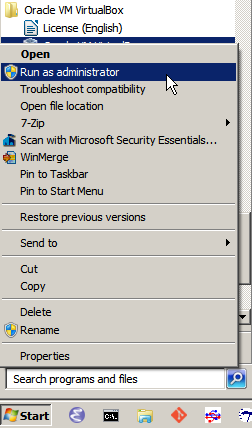
Open VirtualBox, start it using ‘Run as Administrator’ by selecting it in the Start Menu and right clicking to find the option.

3 virtual box run as admin.png

In the Machine menu click New. Choose a name then click Next.

02b Name Virtual Machine 32bit.png

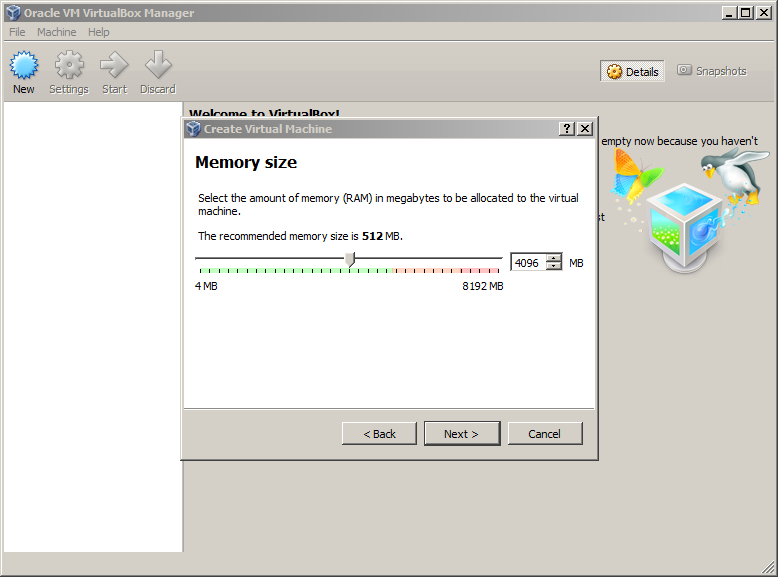
Select at least the default Memory size, stay in the green area in the slider, click Next.
04b VM Memory Size.png

Select Create a virtual hard drive now, click Create.

Select the default hard drive file type, VDI (VirtualBox Disk Image), click Next.

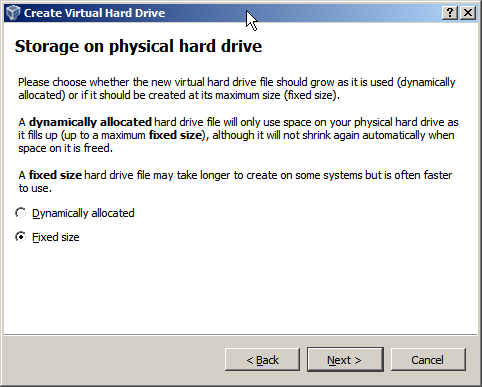
Select Fixed size hard drive, click Next.

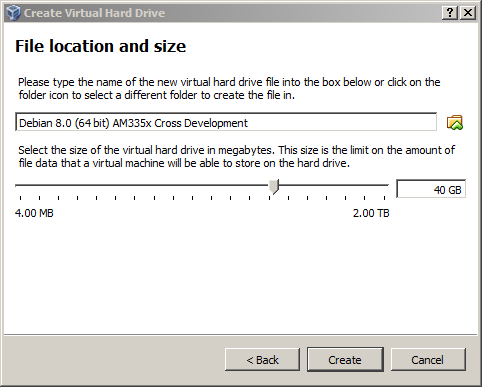
Select the folder where you would like to store your Virtual Machine on your computer. If you select the default it may not show where it is being stored. Select at least 8.0GB for the virtual hard drive. If you will be building the Linux kernel a larger drive is recommended, 16GB to 40GB.08b VM File location and size.png

Select the size and click create. This takes a few minutes to complete.


When it is finished your Virtual Machine is ready for the Linux Installation.

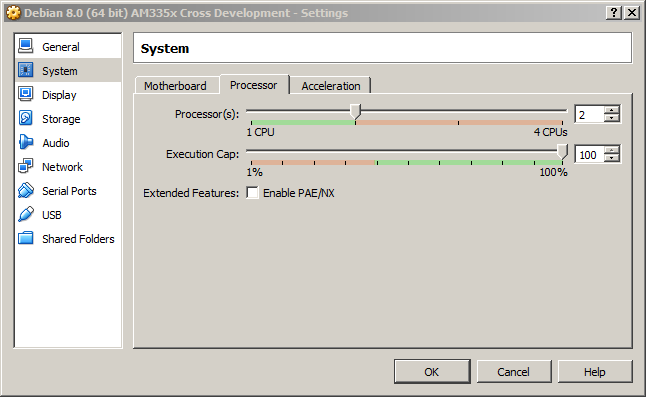
If you have enough processors you can change the VM settings to use more than one of them.  In the Machine menu click Settings.  Click on the System icon on the left of the settings window then click on the Processor tab.  If you can stay in the green then add a processor to improve performance.
10.5 Settings processor.png

1.5 Install Debian


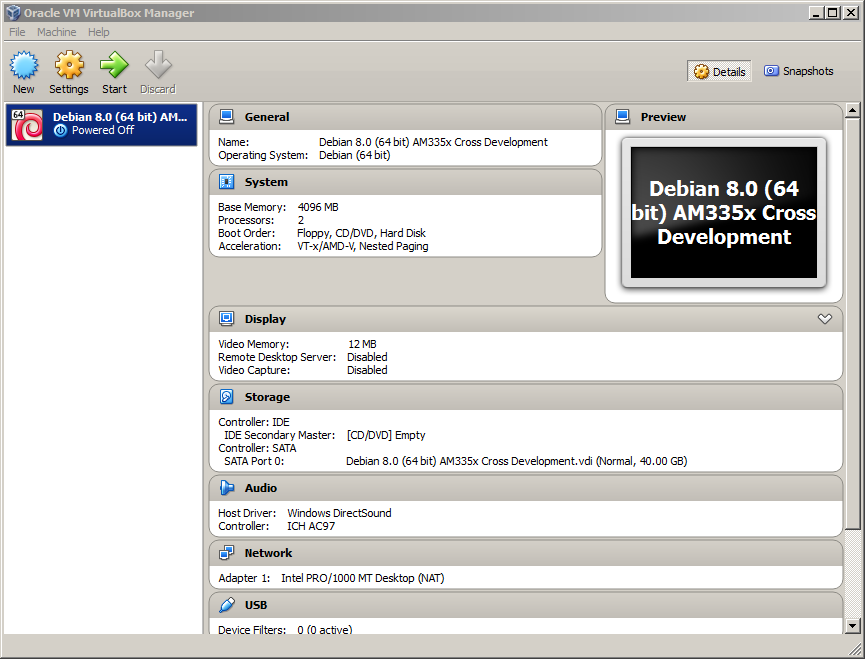
Highlight the Virtual Machine and click the green arrow to start it.
10c VM Created.png


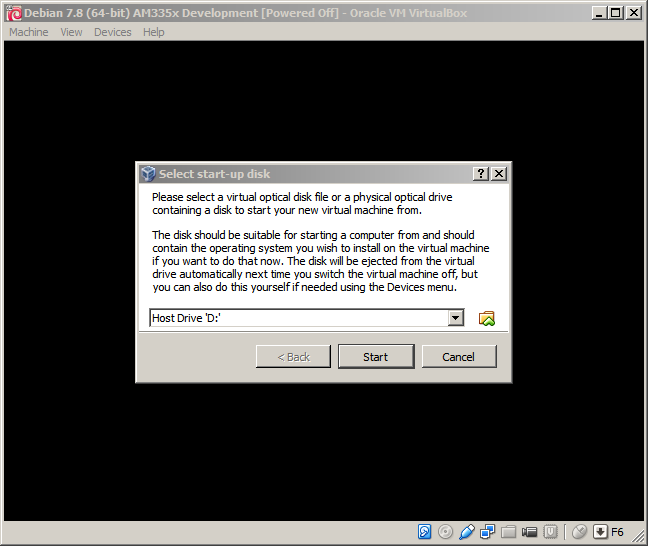
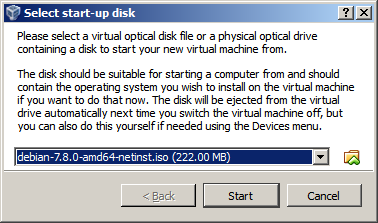
The Select start-up disk window will detect an optical (CD/DVD) drive by default for the installation medium.  To use the .iso file that you downloaded instead, click the folder icon and browse to the place you stored the Debian netinstall iso file.
After you find the Debian .iso you downloaded, click Start.

After the Debian boot menu appears, select the window with your mouse and press enter to start the Install.

Select the defaults for the next three screens, you can use the tab or arrow keys to navigate the screens.  The next three defaults are English, United States, American English.

This starts some installation work then the network configuration screen asks for a hostname.  You can use the default (debian) or make something up.  

Next is the domain name,  you don’t need to enter anything on this screen.

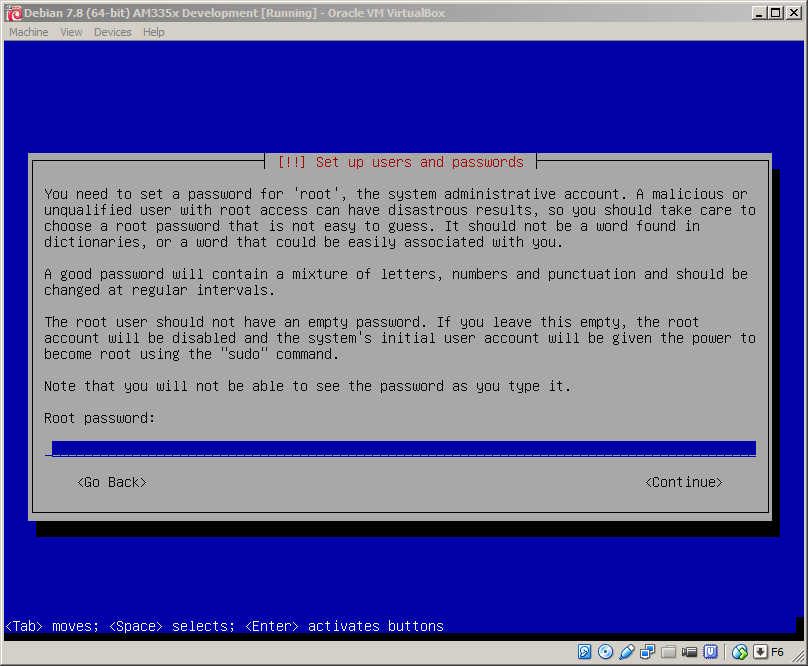
The next screen asks for a root password.

Remember to write this password down.

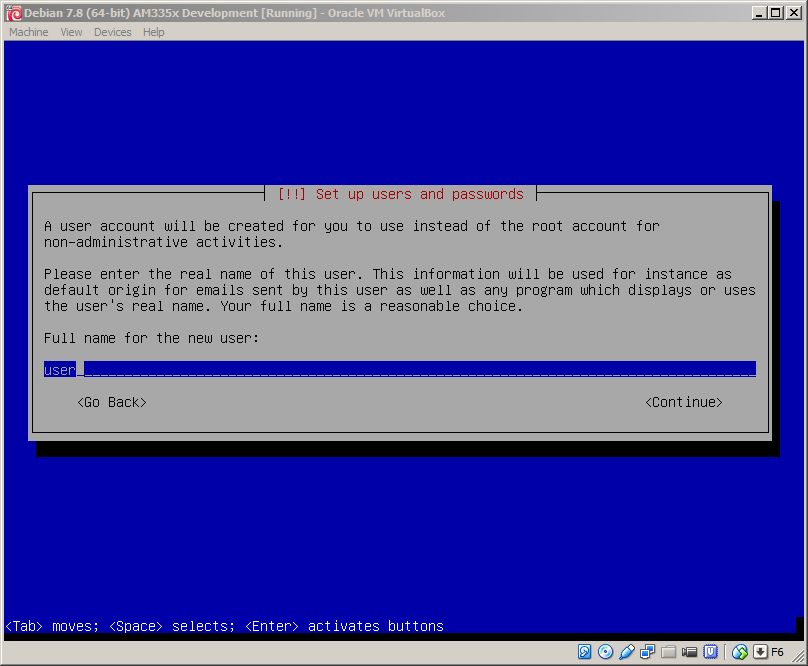
Create a user login to use for development work.  For example, your first name or initials (usually all in lower case).  You can just enter the same name on the next two screens.

It will prompt for a password for the user that you created, make sure to write it down.

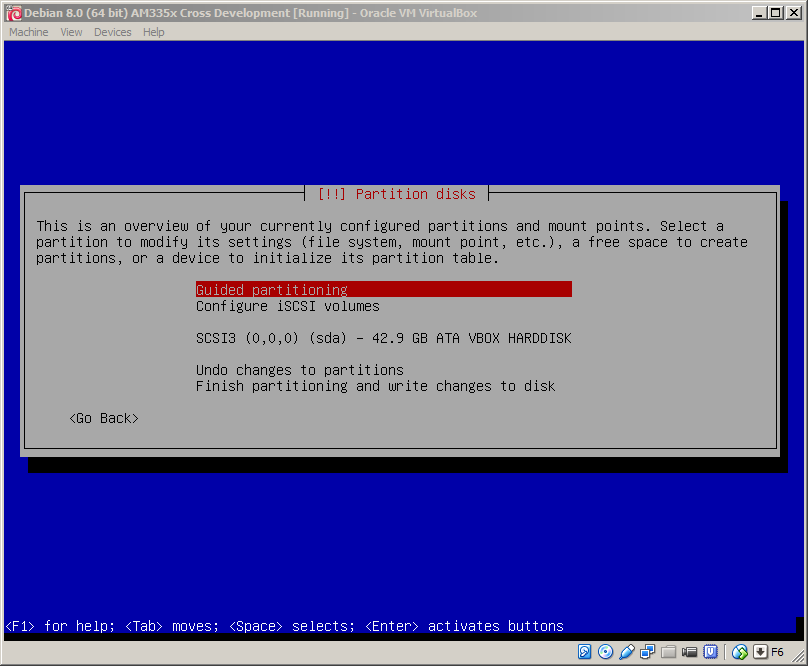
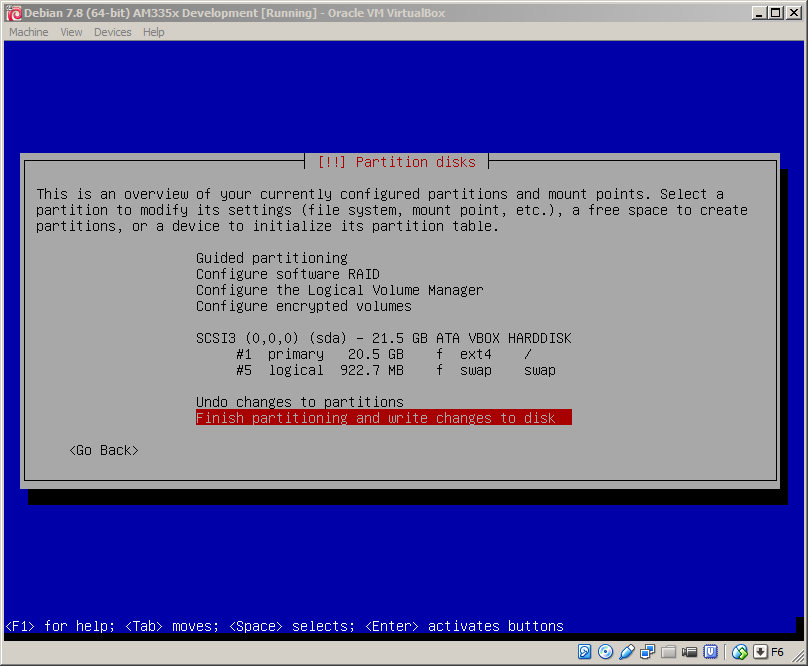
The partition disks screen will have Guided partitioning selected, click enter to continue.
18b Debian Partition disks.png

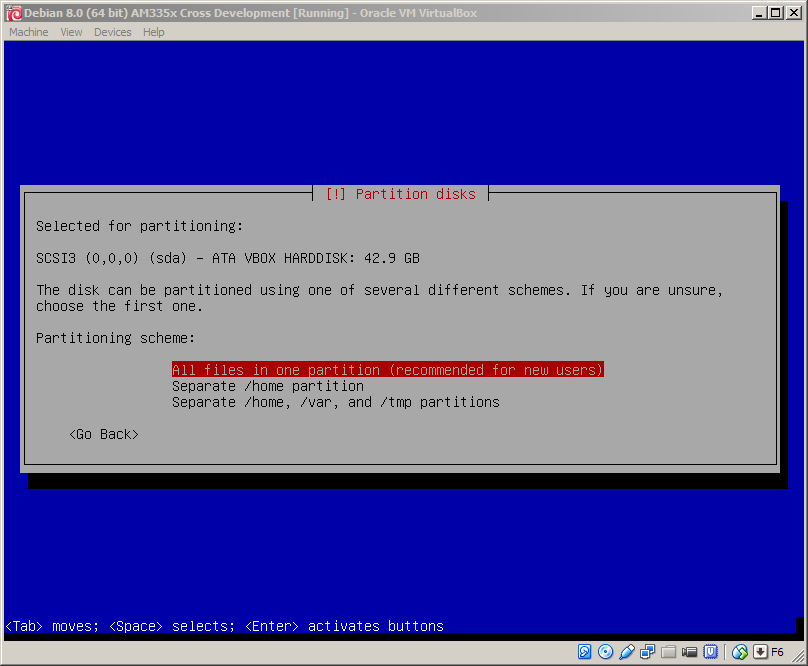
Choose Guided - use entire disk.  This will only apply to the virtual disk you created for the VM.

20b Debian Partition disks 3.png
Press enter.
20c Debian Partition disks 3.png
Choose the default and enter,

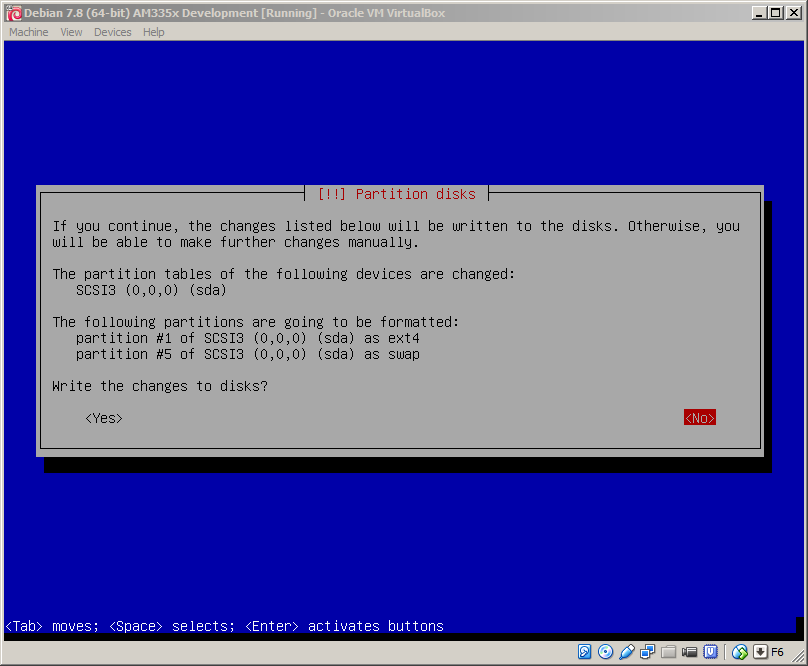
If everything looks good press enter.  You will get a confirmation screen and need to select 'Yes' and enter to start the base installation.

Partitioning will take a few minutes.


When this is finished, you will be asked to select a local server (mirror) to download files, choose a mirror close to you by selecting a country, then a server address for an organization near you.

Skip the proxy on the next screen, this starts file retrieval which takes a few minutes.

When that is finished, select the default for the package usage survey (popularity contest).

The software selection is next, unselect all choices except Xfce. The apt-get utility will be used to install any software that is needed later.

23b Debian software selection.png
Select continue, software retrieval will take a minute or two.

The next prompt will ask to install the GRUB boot loader, click yes.  It will not affect the windows boot, just the virtual machine virtual disk.

Choose /dev/sda for the boot loader installation device and press enter.
24b Debian GRUB install.png
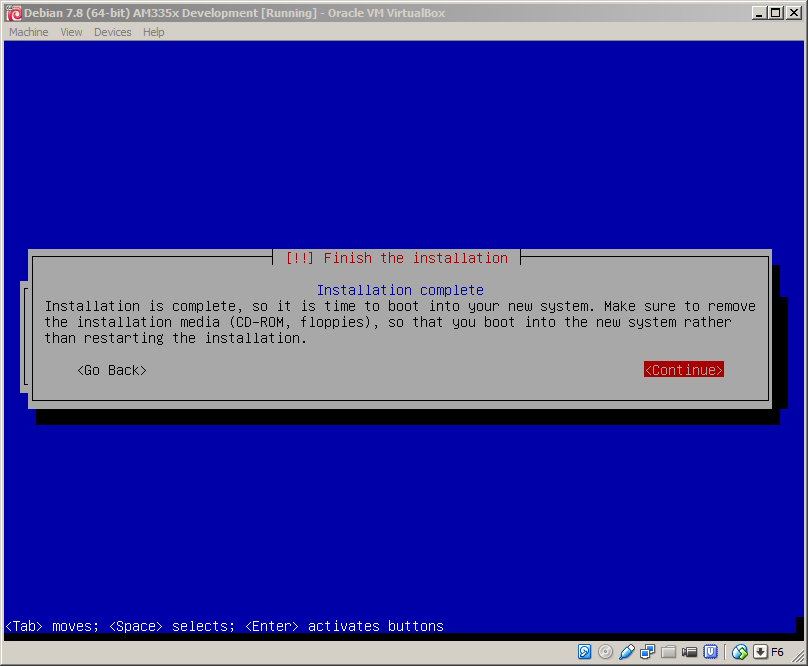
The installation will complete in about another minute.

After you press enter, the virtual machine will reboot and launch Debian.  It will pause for a few seconds during boot asking which OS to select; don’t press any key.  

The system will boot up and display the login prompt.  Login as root this first time to install packages and configure the system.
26b Debian login prompt.png

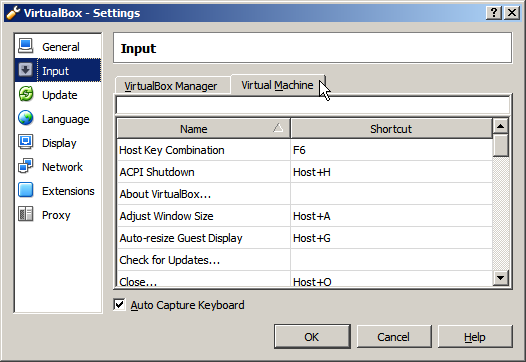
In the above window in the lower right corner there is a down arrow by it shows the current host key combination.  This key cannot be used by Linux because VirtualBox by default uses it for key combinations to do various things like adjust window size.  The default is the right control key.  That key is used by some linux editors but you can change the host key combination to something you don’t use.  I already changed it to F6 but you can choose any key that you don’t use in Linux.

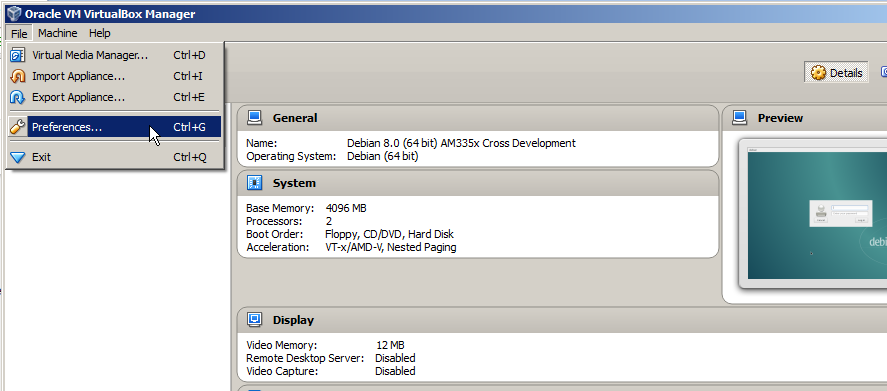
To change the VirtualBox host key go to the Oracle VM VirtualBox Manager window.  Open the File menu and click Preferences.
28b VM Manager Preferences.png

Click on Input and then the Virtual Machine tab.
Click on the Right Ctrl shortcut and then press the key you want to use instead on the keyboard.  It will automatically show up in the box.
Click OK, the virtual machine window should now show the new key in the lower right corner.

1.6 Install VirtualBox Guest Additions


The Guest Additions allow you to share folders between the host machine and the Virtual machine.

Login as root and open a terminal to install some development software to build the guest additions.  You can open a terminal by right clicking the mouse on the Linux desktop and clicking Open Terminal Here.

27b Debian root prompt.png

1.6.1 Edit sources.list

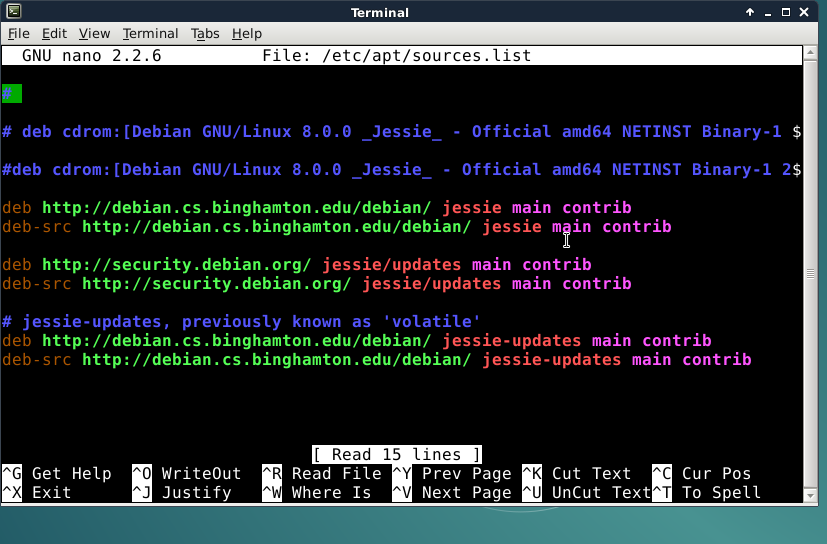
Edit /etc/apt/sources.list with the vi or  nano editor.
root@debian:~# nano /etc/apt/sources.list

Add ‘contrib’ to the end of each line that is not commented.
30.1b VM apt sources.list chages.png
If you use nano press CONTROL-O, ENTER to write (WriteOut) the file then CONTROL-X exit.

Here is an example file that doesn’t use mirror servers.  If you make a mistake editing you can just make the file look exactly like this.

deb http://ftp.us.debian.org/debian jessie main contrib
deb-src http://ftp.us.debian.org/debian jessie main contrib

deb http://security.debian.org/ jessie/updates main contrib
deb-src http://security.debian.org/ jessie/updates main contrib

deb http://ftp.debian.org/debian/ jessie-updates main contrib
deb-src http://ftp.debian.org/debian/ jessie-updates main contrib

Update the system to use the new sources.list file
root@debian# apt-get update

1.6.3 Build and Install Guest Additions


Go to the VirtualBox menu in the window containing the virtual machine, select Devices->Insert Guest Additions CD Image.

In a few seconds you will see an icon for the CD on the desktop.

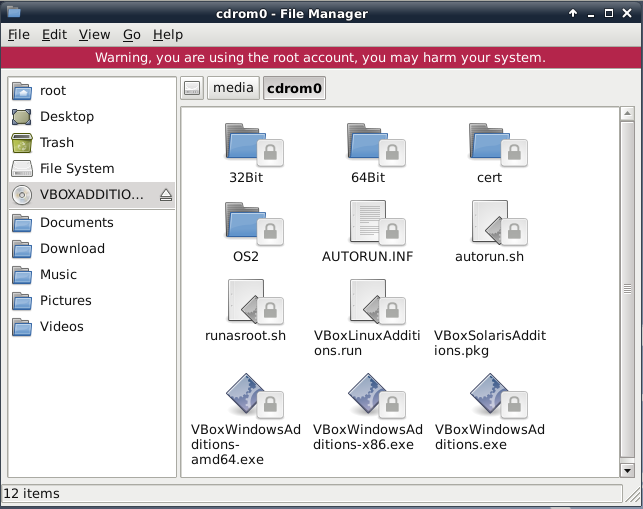
Double click on the VBOXADDIT... CD icon.  This will mount the drive and you should see the file manager open.

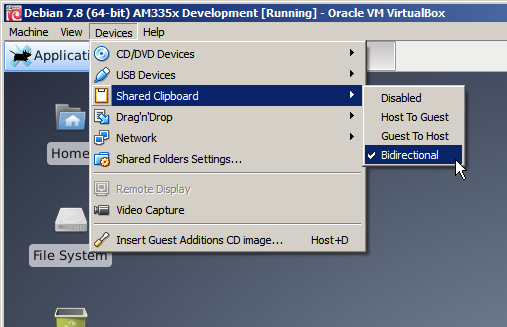
To make it easier to enter longer commands, you can cut and paste the commands into the virtual machine if you enable shared clipboard in the Virtual Machine window.
To use the shared clipboard, you must be in the graphical mode and use a terminal emulator window.  To use the shared clipboard, highlight text in windows, press CONTROL-C and then move the mouse to a terminal window in the VM Debian Linux Window and press the middle mouse button (or scroll wheel).  In some programs you can use the Edit->Paste menu item.


root@debian:~# apt-get install build-essential module-assistant
root@debian:~# m-a prepare
root@debian:~# sh /media/cdrom/VBoxLinuxAdditions.run
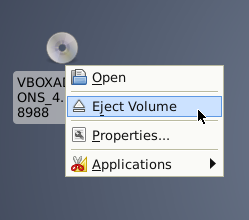
After that completes eject the volume.

root@debian:~# reboot

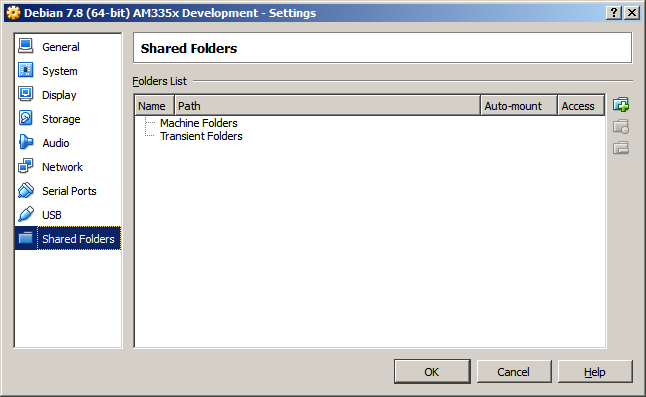
When the machine comes up go to the VirtualBox menu select Devices->Shared Folder Settings...
37b shared folders settings.png


Select the blue folder with a green plus to the right to add a new shared folder.


Select auto-mount and Make Permanent and press OK.

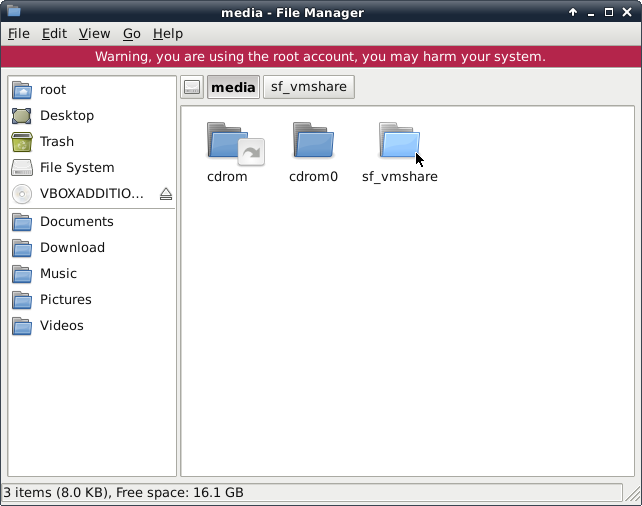
Reboot the virtual machine and login into the user account you created  to see the shared folder.  It will be located in the Linux virtual machine in the /media path with the prefix sf_ so for example /media/sf_vmshare will allow you to access the windows C:\vmshare directory.
39.1 share mounted.png

1.7 VirtualBox USB-to-serial Device Setup


During development you will want a serial connection to the target board to interact with the Linux console.  This section is optional because I have found the serial communication in VirtualBox sometimes hangs (I haven’t seen any issue with serial communication with Linux unless outside a VM).  You should use a host OS program like teraterm in windows for reliable communication.    You still might want to set up serial for occasional use.

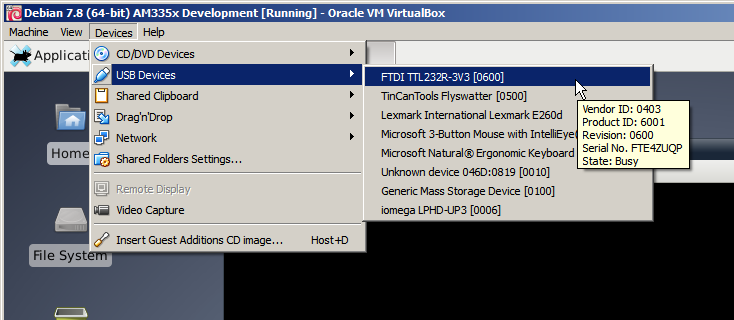
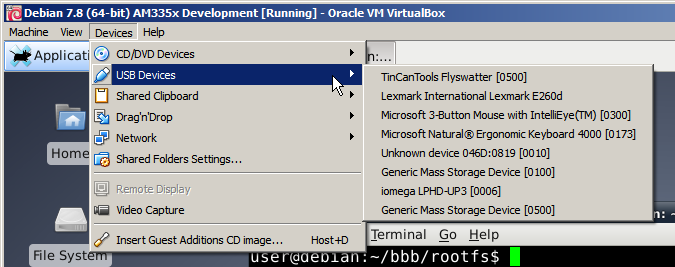
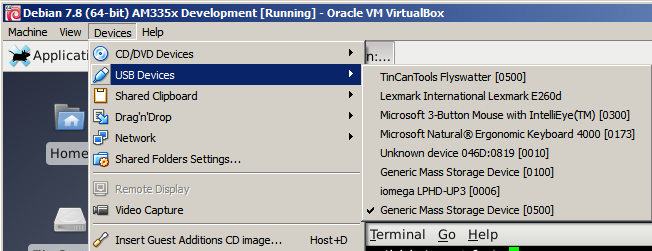
If you connect a USB-to-serial device to the windows host, you need to let the VM take control so Linux can access it.  You do this from the Devices Menu.  Select USB Devices and look for the FTDI part number in the list.


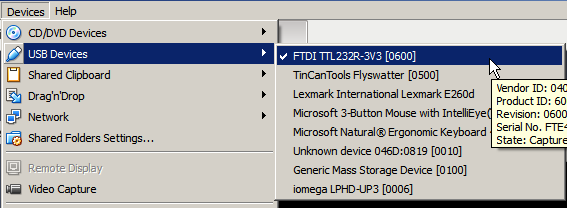
Click on the device and Windows should install VirtualBox USB and then the device will show up on the list with a check mark.

Now the device is available in Linux.

1.8 VirtualBox SD Reader Connection


We need low level access to an SD card to create a microSD that will be bootable in the BeagleBone Black.  The easiest way to access a SD or MicroSD card in a virtual machine is to use a USB card reader.  If you don’t have one and need to use the built in SD slot here is a link that shows how to get raw access to a physical drive in VirtualBox.
https://scottlinux.com/2010/06/26/raw-disk-access-with-virtualbox/

Connect a USB SD card reader to the computer.  We need to find it in the list of USB devices in Virtualbox.


If you have more than one USB drive connected and see multiple Generic Mass Storage Device listings we need to find it’s ID.

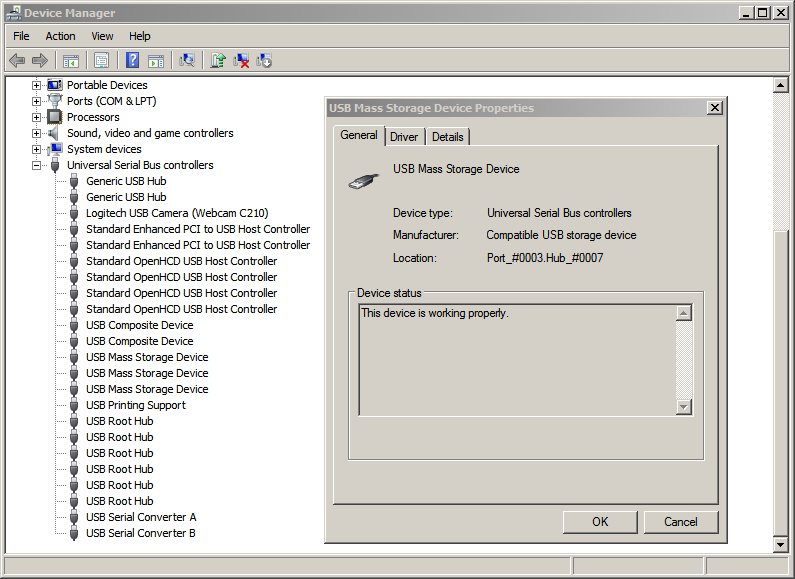
Open the Windows Device Manager, and click on Universal Serial Bus controllers.  Right click on each USB Mass Storage Device and open properties to see it’s location and hardware ids.

I see that this is the properties for the USB card reader by the port and hub location shown.

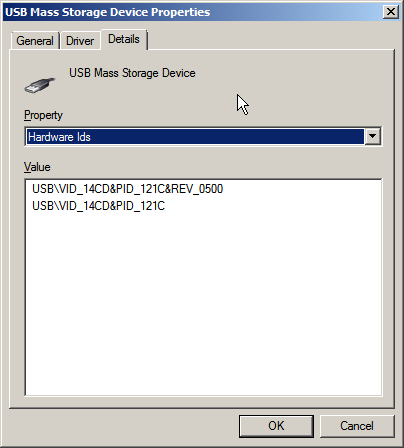
Click on the Details tab and select Hardware Ids.

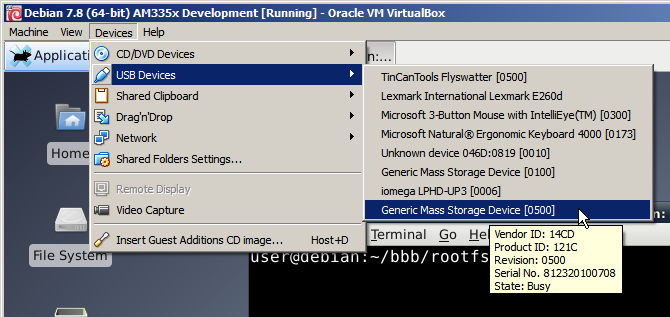
Now we can hover the mouse over each virtual box usb device to see which one matches the IDs.

Next click on the device in the list, windows may tell you it’s installing new hardware, after a few seconds it will show the driver was installed.


A check will show up in the VirtualBox list to show it's available.


That is the end of part 1. Continue to part 2 to set up Debian OS for Embedded Linux development.


Saturday, May 2, 2015

Blogger Tip: Don't Delete or Change Sharing for Google+ Blogger Photos
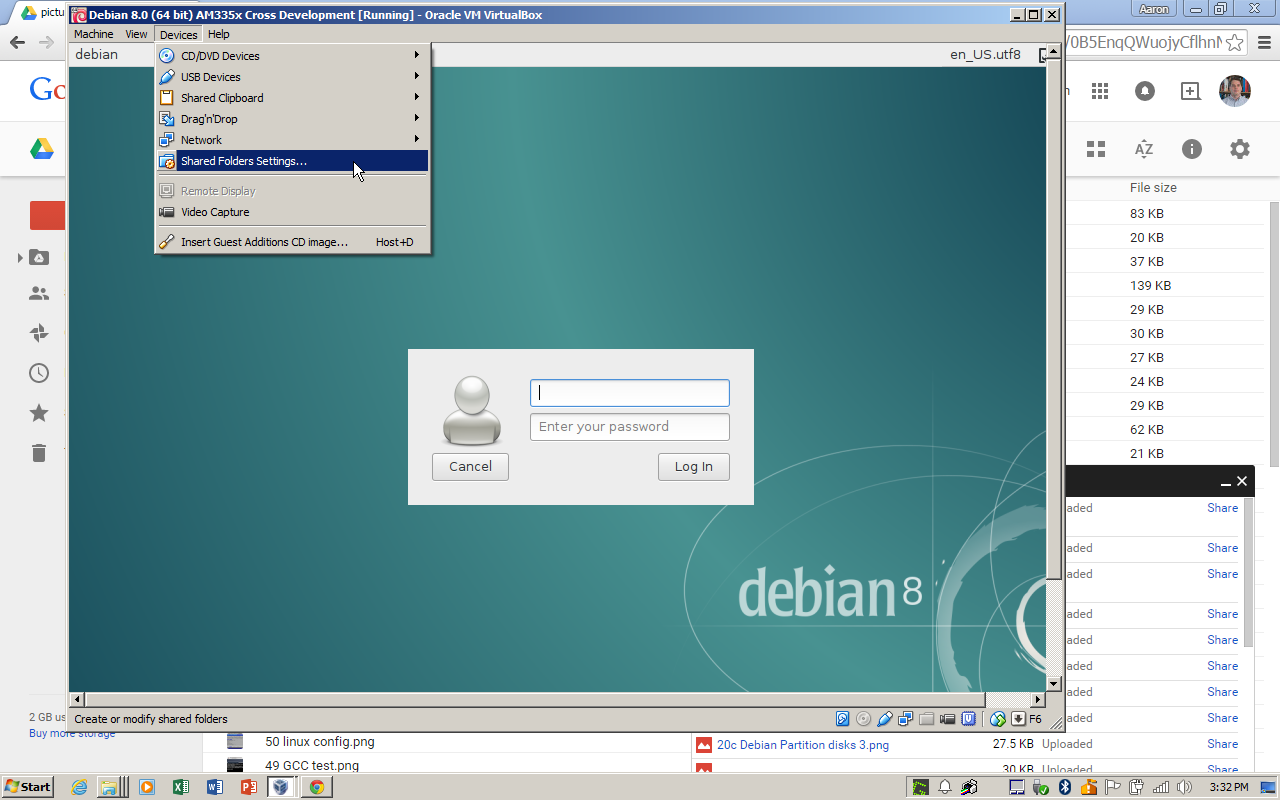
I just accidentally broke all my image links in this blog.  I'm in the process of updating them so please excuse the broken links for the next few days.   I did this by removing a sharing link to an album in Google+ photos.  The photo below shows how you could do this. Hopefully this will help someone else avoid this mistake.  At least I did not delete the photo album, when Google photos first went live many bloggers made this mistake and lost years worth of photos.

I believe I have found a way to avoid using any google photos on my blog.  I noticed a few images on my blog were not affected when I removed the share link.  These images were inserted into the blog post using an external URL and the original size was selected (they were not enhanced either).  I am trying this method as I update the broken links.  I am using an external URL for all images, some I am hosting on a subdirectory of my website.  I'm also adjusting the images so I can choose the original size.

Wednesday, March 25, 2015

Element14 Sci Fi Your Pi Challenge

The element14 community Sci Fi Your Pi design challenge is underway.  Competitors will be required to create an application inspired by Science Fiction.  You must to apply to compete but if selected you receive a Raspberry Pi 2, a few other Pi models and various add on boards.  For more details and some example projects see Sci Fi Your Pi Design Challenge Information.  The Grand Prize is a Star Wars Boba Fett Helmet, the community choice prize will be some additional electronics.  Recruitment closes on April 12, 2015.  Here's a great second chance to show off your tricorder design if you missed being a finalist in the $10 Million Qualcomm tricorder XPRIZE.