Friday, January 30, 2026

Keyword Spotting on ESP32-C3-Lyra V2 Using ESP-IDF

ESP32-C3 Keyword Spotting (TFLite Micro micro_speech) with Onboard Mic (ADC)

ESP32-C3 Keyword Spotting (“Yes/No”) with TFLite Micro micro_speech using the Onboard Mic (ADC)

This post documents how to run TensorFlow Lite for Microcontrollers (TFLM) (now branded as LiteRT for Microcontrollers) keyword spotting example (micro_speech) on an ESP32-C3 board, and how to adapt the example to use the onboard analog microphone routed through the ESP32-C3 ADC. To set up the ESP32-C3-lyra V2, see this post: Hello World on ESP-32-C3-Lyra V2.0

Environment / Versions

  • Target board: ESP32-C3 (ESP32-C3-Lyra)
  • ESP-IDF version: v6.x (or v6.0-dev)
  • Example project: esp-tflite-micro:micro_speech (keyword spotting “yes/no”)
Note (ESP-IDF v6+): ESP-IDF v6 removed the legacy ADC header (driver/adc.h) and renamed some ADC attenuation enums. The ADC code below reflects those v6+ changes.

Command Log

1) Load the ESP-IDF environment

. $HOME/esp/esp-idf/export.sh

2) Create a new project from the micro_speech example

cd ~
idf.py create-project-from-example "espressif/esp-tflite-micro=1.3.0:micro_speech"
mv ~/micro_speech ~/keyword_spotting_tflm

3) Set the target to ESP32-C3

cd ~/keyword_spotting_tflm && idf.py set-target esp32c3

4) Install/verify ESP-IDF tools for ESP32-C3 (v6+ toolchain)

python3 $IDF_PATH/tools/idf_tools.py install --targets esp32c3
. $HOME/esp/esp-idf/export.sh

5) Build

cd ~/keyword_spotting_tflm && idf.py build

6) Flash and open the serial monitor

cd ~/keyword_spotting_tflm && idf.py -p /dev/ttyUSB0 flash monitor
Exit the monitor: Press Ctrl + ]

Troubleshooting

Issue: Default example tried I2S and failed

The upstream micro_speech project’s audio capture path attempted to configure I2S pins (I2S microphone). On this setup, we used the onboard mic through ADC instead. The following error occurs:

E (...) i2s_set_pin(...): bck_io_num invalid
E (...) TF_LITE_AUDIO_PROVIDER: Error in i2s_set_pin

Fix: Switch audio capture from I2S to ADC continuous sampling

Key points of the ADC implementation:

  • Use esp_adc/adc_continuous.h continuous mode to sample at 16 kHz.
  • Convert 12-bit unsigned ADC samples into signed 16-bit PCM-like samples centered around mid-scale.
  • Write samples into the existing ring buffer so the model’s GetAudioSamples() continues to work.

Replace audio_provider.cc with the working ADC version (ESP32-C3 TYPE2) by replacing the entire contents of:

~/keyword_spotting_tflm/main/audio_provider.cc

with the following code:

/* ADC-based audio provider for ESP32-C3-Lyra (MIC_ADC on IO0 / ADC1 CH0) */

#include "audio_provider.h"

#include <cstring>

#include "freertos/FreeRTOS.h"
#include "freertos/task.h"

#include "esp_log.h"

#include "esp_adc/adc_continuous.h"

#include "ringbuf.h"
#include "micro_model_settings.h"

static const char* TAG = "TF_LITE_AUDIO_PROVIDER";

ringbuf_t* g_audio_capture_buffer;
volatile int32_t g_latest_audio_timestamp = 0;

constexpr int32_t history_samples_to_keep =
    ((kFeatureDurationMs - kFeatureStrideMs) * (kAudioSampleFrequency / 1000));
constexpr int32_t new_samples_to_get =
    (kFeatureStrideMs * (kAudioSampleFrequency / 1000));

const int32_t kAudioCaptureBufferSize = 40000;

namespace {
int16_t g_audio_output_buffer[kMaxAudioSampleSize * 32];
bool g_is_audio_initialized = false;
int16_t g_history_buffer[history_samples_to_keep];

adc_continuous_handle_t g_adc_handle = NULL;

// Read buffer (raw ADC frames)
static constexpr size_t kAdcReadBytes = 1024;
uint8_t g_adc_read_buf[kAdcReadBytes];

// Temporary PCM buffer (int16)
int16_t g_pcm_buf[kAdcReadBytes / sizeof(adc_digi_output_data_t)];

// ESP32-C3-Lyra MIC_ADC is routed to IO0 => ADC1 channel 0
static constexpr adc_unit_t kAdcUnit = ADC_UNIT_1;
static constexpr adc_channel_t kAdcChannel = ADC_CHANNEL_0;
static constexpr adc_atten_t kAdcAtten = ADC_ATTEN_DB_12;
static constexpr adc_bitwidth_t kAdcBitwidth = ADC_BITWIDTH_12;
}  // namespace

static void adc_init_continuous() {
  adc_continuous_handle_cfg_t handle_cfg = {
      .max_store_buf_size = 4096,
      .conv_frame_size = 1024,
  };
  ESP_ERROR_CHECK(adc_continuous_new_handle(&handle_cfg, &g_adc_handle));

  adc_digi_pattern_config_t pattern = {};
  pattern.atten = kAdcAtten;
  pattern.channel = kAdcChannel;
  pattern.unit = kAdcUnit;
  pattern.bit_width = kAdcBitwidth;

  adc_continuous_config_t dig_cfg = {};
  dig_cfg.sample_freq_hz = kAudioSampleFrequency;  // 16 kHz
  dig_cfg.conv_mode = ADC_CONV_SINGLE_UNIT_1;

  // ESP32-C3 DMA output uses TYPE2 layout
  dig_cfg.format = ADC_DIGI_OUTPUT_FORMAT_TYPE2;

  dig_cfg.pattern_num = 1;
  dig_cfg.adc_pattern = &pattern;

  ESP_ERROR_CHECK(adc_continuous_config(g_adc_handle, &dig_cfg));
  ESP_ERROR_CHECK(adc_continuous_start(g_adc_handle));
}

static inline int16_t adc12_to_pcm16(uint16_t adc12) {
  int32_t centered = (int32_t)adc12 - 2048;
  int32_t pcm = centered << 4;  // scale 12-bit to ~16-bit
  if (pcm > 32767) pcm = 32767;
  if (pcm < -32768) pcm = -32768;
  return (int16_t)pcm;
}

static void CaptureSamples(void* arg) {
  adc_init_continuous();

  while (true) {
    uint32_t out_bytes = 0;
    esp_err_t ret = adc_continuous_read(
        g_adc_handle, g_adc_read_buf, kAdcReadBytes, &out_bytes, pdMS_TO_TICKS(200));

    if (ret == ESP_OK && out_bytes > 0) {
      const size_t n_frames = out_bytes / sizeof(adc_digi_output_data_t);

      for (size_t i = 0; i < n_frames; i++) {
        const adc_digi_output_data_t* p =
            (const adc_digi_output_data_t*)(g_adc_read_buf +
                                            i * sizeof(adc_digi_output_data_t));

        // ESP32-C3 uses type2 layout (type1 will not compile)
        uint16_t raw = (uint16_t)(p->type2.data);

        g_pcm_buf[i] = adc12_to_pcm16(raw);
      }

      const int bytes_to_write = (int)(n_frames * sizeof(int16_t));
      const int bytes_written = rb_write(g_audio_capture_buffer,
                                         (uint8_t*)g_pcm_buf,
                                         bytes_to_write,
                                         pdMS_TO_TICKS(200));

      if (bytes_written > 0) {
        const int samples_written = bytes_written / (int)sizeof(int16_t);
        g_latest_audio_timestamp += (1000 * samples_written) / kAudioSampleFrequency;
      }
    }

    if (ret != ESP_OK && ret != ESP_ERR_TIMEOUT) {
      ESP_LOGE(TAG, "adc_continuous_read failed: %s", esp_err_to_name(ret));
      vTaskDelay(pdMS_TO_TICKS(50));
    }
  }
}

TfLiteStatus InitAudioRecording() {
  g_audio_capture_buffer = rb_init("tf_ringbuffer", kAudioCaptureBufferSize);
  if (!g_audio_capture_buffer) {
    ESP_LOGE(TAG, "Error creating ring buffer");
    return kTfLiteError;
  }

  xTaskCreate(CaptureSamples, "CaptureSamples", 1024 * 4, NULL, 10, NULL);

  while (!g_latest_audio_timestamp) {
    vTaskDelay(1);
  }

  ESP_LOGI(TAG, "Audio Recording started (ADC continuous)");
  return kTfLiteOk;
}

TfLiteStatus GetAudioSamples1(int* audio_samples_size, int16_t** audio_samples) {
  if (!g_is_audio_initialized) {
    TfLiteStatus init_status = InitAudioRecording();
    if (init_status != kTfLiteOk) {
      return init_status;
    }
    g_is_audio_initialized = true;
  }

  int bytes_read =
      rb_read(g_audio_capture_buffer, (uint8_t*)(g_audio_output_buffer), 16000, 1000);
  if (bytes_read < 0) {
    ESP_LOGI(TAG, "Couldn't read data in time");
    bytes_read = 0;
  }
  *audio_samples_size = bytes_read;
  *audio_samples = g_audio_output_buffer;
  return kTfLiteOk;
}

TfLiteStatus GetAudioSamples(int start_ms, int duration_ms,
                             int* audio_samples_size, int16_t** audio_samples) {
  if (!g_is_audio_initialized) {
    TfLiteStatus init_status = InitAudioRecording();
    if (init_status != kTfLiteOk) {
      return init_status;
    }
    g_is_audio_initialized = true;
  }

  memcpy((void*)(g_audio_output_buffer), (void*)(g_history_buffer),
         history_samples_to_keep * sizeof(int16_t));

  int bytes_read =
      rb_read(g_audio_capture_buffer,
              ((uint8_t*)(g_audio_output_buffer + history_samples_to_keep)),
              new_samples_to_get * sizeof(int16_t), pdMS_TO_TICKS(200));

  if (bytes_read < 0) {
    ESP_LOGE(TAG, "Model could not read data from Ring Buffer");
  }

  memcpy((void*)(g_history_buffer),
         (void*)(g_audio_output_buffer + new_samples_to_get),
         history_samples_to_keep * sizeof(int16_t));

  *audio_samples_size = kMaxAudioSampleSize;
  *audio_samples = g_audio_output_buffer;
  return kTfLiteOk;
}

int32_t LatestAudioTimestamp() { return g_latest_audio_timestamp; }

Issue: Missing header esp_adc/adc_continuous.h

After adding the include, the build failed with:

fatal error: esp_adc/adc_continuous.h: No such file or directory

Fix: Add the esp_adc component dependency

Edit main/CMakeLists.txt to include esp_adc to PRIV_REQUIRES (or REQUIRES):

nano ~/keyword_spotting_tflm/main/CMakeLists.txt
idf_component_register(
  SRCS ...
  INCLUDE_DIRS .
  PRIV_REQUIRES esp_adc
)

Issue: adc_digi_output_data_t had no type1 on ESP32-C3

Build error:

error: 'const struct adc_digi_output_data_t' has no member named 'type1'

Fix: Use the ESP32-C3 struct layout (TYPE2)

Make the following changes in the file keyword_spotting_tflm/main/audio_provider.cc:

  • ADC_DIGI_OUTPUT_FORMAT_TYPE1ADC_DIGI_OUTPUT_FORMAT_TYPE2
  • p->type1.datap->type2.data

Next, rebuild and reflash:

cd ~/keyword_spotting_tflm && idf.py build
cd ~/keyword_spotting_tflm && idf.py -p /dev/ttyUSB0 flash monitor

Issue: Toolchain version mismatch on ESP-IDF v6+

If the build fails with a toolchain mismatch (e.g., expected esp-15.2.0_20250929), install the ESP32-C3 toolchain:

python3 $IDF_PATH/tools/idf_tools.py install --targets esp32c3
. $HOME/esp/esp-idf/export.sh

Issue: idf.py fullclean refuses

If idf.py fullclean refuses to delete the build directory, delete it manually:

cd ~/keyword_spotting_tflm
rm -rf build
idf.py build

After switching the audio provider to ADC and aligning the ADC DMA output format for ESP32-C3, the application ran successfully and recognized the keywords “yes” and “no” over serial output. The next post will include customization for keyword spotting with additional words.

Tuesday, January 20, 2026

Hello World on ESP32-C3-Lyra V2.0 Using ESP-IDF

Flashing “Hello World” to an ESP32-C3-Lyra V2.0 on Linux (ESP-IDF)

Flashing “Hello World” to an ESP32-C3-Lyra V2.0 on Linux (ESP-IDF)

This post serves as a tutorial for how to build and flash the official ESP-IDF hello_world example to an ESP32-C3-Lyra-V2.0 from a Linux machine, then verify output over UART. This tutorial works for any ESP32-C3. Additionally, this is a precursor to the next post in this series: Keyword Spotting using ESP32-C3-Lyra V2.0

prerequisites:

Hardware

  • ESP32-C3 development board
  • USB cable
  • USB-to-UART bridge presented as CP2102N (common on many ESP32 boards)

Software

  • Ubuntu 22.04
  • ESP-IDF v5.2.3 (installed from source)

Step 1: Verify the board appears as a serial device

Plug the board in over USB and check the kernel log:

sudo dmesg -T | tail -n 30

You should see something indicating a USB-to-UART bridge and the assigned device node, for example:

  • CP2102N USB to UART Bridge Controller
  • ... now attached to ttyUSB0

That means your UART port is likely /dev/ttyUSB0.

Exit the screen using Ctrl+A then K then y

Step 2: Install required packages

Install the typical ESP-IDF build dependencies:

sudo apt update && sudo apt install -y git python3 python3-venv python3-pip cmake ninja-build ccache libffi-dev libssl-dev dfu-util libusb-1.0-0

Step 3: Install ESP-IDF (v5.2.3) + ESP32-C3 toolchain

Clone ESP-IDF and install only what you need for ESP32-C3:

cd ~ && git clone -b v5.2.3 --recursive https://github.com/espressif/esp-idf.git && cd esp-idf && ./install.sh esp32c3

Then load the environment into your current terminal session:

. ./export.sh

From this point, idf.py should be available.

Step 4: Create a local hello_world project

Copy the example out of the ESP-IDF tree (so you can edit safely later):

cd ~ && cp -r ~/esp-idf/examples/get-started/hello_world ~/hello_world

Step 5: Set the target to ESP32-C3

cd ~/hello_world && idf.py set-target esp32c3

Step 6: Build, flash, and monitor

Flash to the detected serial port and open the monitor immediately:

idf.py -p /dev/ttyUSB0 flash monitor

If you get a permissions error on /dev/ttyUSB0, rerun with sudo:

sudo idf.py -p /dev/ttyUSB0 flash monitor

To exit the ESP-IDF monitor: press Ctrl + ].

Expected output

After flashing, the monitor should show hello_world output similar to:

Hello world!
This is esp32c3 chip with 1 CPU core(s), WiFi/BLE, silicon revision v0.3, 2MB external flash
Minimum free heap size: 328280 bytes

Troubleshooting

1) idf.py: command not found

Re-run:

. ./export.sh

2) Wrong serial port

Re-run:

sudo dmesg -T | tail -n 30

Look for ttyUSB0 vs ttyACM0, then update the -p argument accordingly.

3) Permission denied on /dev/ttyUSB0

  • Use sudo as shown above, or add your user to the serial group (commonly dialout) and re-login.

Friday, June 20, 2025

A Guide to Using ST Edge AI Developer Cloud

Using ST Edge AI Developer Cloud

In a previous post, A Guide to STMicroelectronics' Edge AI Suite Tools , I provided an overview of the tools in STMicroelectronics' Edge AI Suite. In this post, we'll focus on one such tool— ST Edge AI Developer Cloud— and walk through how to use it to test machine learning models.

ST Edge AI Developer Cloud is a web-based tool that allows you to test machine learning models by remotely accessing ST boards. It enables simulation of deployment and performance testing without the need to purchase any physical boards.

This guide outlines each step required to use the Developer Cloud, with screenshots provided to show the exact process. A similar walkthrough is also available in a video on the STMicroelectronics YouTube Channel.

Walkthrough

1. Accessing Edge AI Developer Cloud

Visit the ST Edge AI Developer Cloud and click "Start Now" on the landing page.

ST Edge AI Developer Cloud Start Page

2. Sign in or Create an Account

To use the tool, log into your myST account or create one if you haven't already.

Create myST Account

3. Import a Model

Import a model from your device or from the ST Model Zoo. For this example, I will use the first "Hand Posture" model that appears in the Model Zoo. Once selected, click "Start" next to the imported model.

Select Hand Posture Model

4. Choose Platform & Version

Select a version and platform to use. For this demonstration, I will use the default version, ST Edge AI Core 1.0.0, and select STM32 MPUs as the target platform.

Platform and Version Selection

5. Quantize the Model

Click "Launch Quantization". You may also upload a .npz file for accuracy evaluation. After quantization, click "Go Next" to move on to the Optimization stage.

Quantization Step

6. Optimize the Model

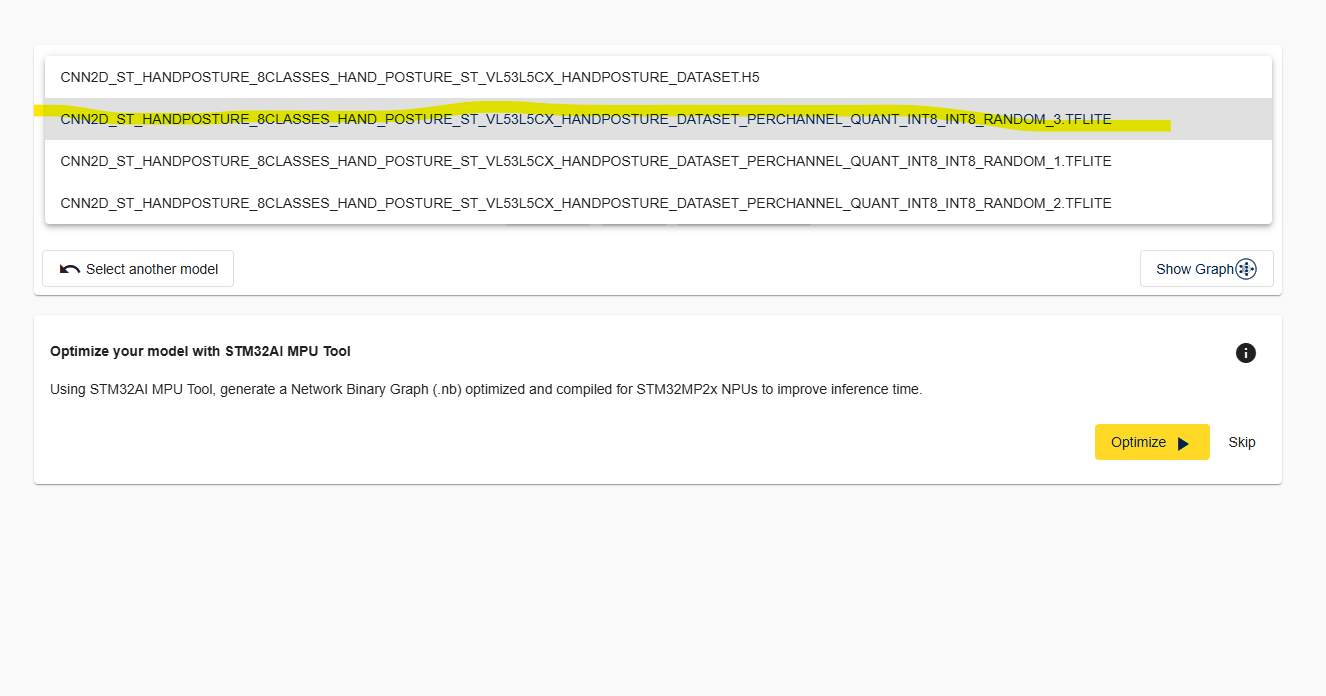
In the Optimization section, select a .tflite file from the model selector at the top, then click "Optimize". Once the model has been optimized, click "Continue", which will appear next to the "Optimize" button.

Optimize Model

7. Benchmark Across Boards

Click "Start Benchmark" for all available boards. This will remotely run inference on a physical board and display the inference time once complete. Afterwards, click "Go Next" above the boards.

Benchmark Across Boards

8. View Results

Under the "Results" section, you can view metrics such as weight size, performance, and resource utilization.

The "Show details per layer" option shows the resource utilization on the selected board, and the "Show performance summary" option compares inference times across all tested boards. After reviewing the results, click "Go Next".

View Inference Results

9. Generate Code

Based on the benchmark results, generate code tailored to the optimal board. In this example, we will select the STM32MP135F-DK board, as it showed the fastest inference time. To view the timings, refer to the "Show Performance Summary" graph from the "Results" section.

Code Generation Summary

Conclusion

The ST Edge AI Developer Cloud is a powerful testing environment for optimizing AI models on ST hardware. By allowing developers to evaluate boards remotely, it streamlines the deployment process and speeds up decision-making when selecting the best platform for your machine learning applications.

Tuesday, May 13, 2025

Fix for KiCad Causing Windows Shutdown

Recently while working with KiCad 9.0.2, my Windows 11 machine kept shutting down unexpectedly. To fix this issue I had to uninstall all versions of KiCad on my computer, then reinstall the latest version. In this instance, I had 7.0, 8.0 and 9.0 installed.

Once all versions have been removed, double check your start menu for an app called "KiCad Command Prompt". If it appears, you may need to uninstall it also. Additionally, you may need to restart your computer. Afterwards, proceed with reinstalling 9.0.2.

Now that 9.0.2 runs smoothly, I will check back upon future releases to see if similar issues arise.

Friday, March 14, 2025

How to Build the TensorFlow Lite C API from Source Inside WSL

How to Build TensorFlow Lite C API from Source Inside WSL

TensorFlow Lite is a lightweight, efficient runtime for deploying machine learning models on edge devices. It's ideal for environments that are low-power and performance-critical such as embedded systems mobile devices, and microcontrollers.

Building the TensorFlow Lite C API from source inside Windows Subsystem for Linux (WSL) allows you to integrate AI inference into native C applications. This is useful when working on constrained devices, building low-level systems, or working with existing C/C++ codebases.

Step 1: Set Up WSL and Create a .wslconfig File (Optional)

+

To prevent Bazel crashes from memory exhaustion, increase the memory limit for WSL. First, Open the Terminal(Windows Powershell):

# On Windows (not WSL):
Create C:\Users\<yourname>\.wslconfig with the following content:

[wsl2]
memory=6GB
processors=4

To do this with Notepad:

  • Open the Start menu and type Notepad
  • Paste the above configuration text into the new file
  • Click File > Save As...
  • Set File name: .wslconfig
  • Set Save as type: to All Files
  • Save it to C:\Users\<yourname>\

Then from PowerShell:

wsl --shutdown

Step 2: Install Prerequisites

sudo apt update
sudo apt install -y build-essential clang git wget python3-pip

Step 3: Install Numpy

pip install numpy

Step 4: Install Bazelisk

wget https://github.com/bazelbuild/bazelisk/releases/download/v1.17.0/bazelisk-linux-amd64 -O bazelisk
chmod +x bazelisk
sudo mv bazelisk /usr/local/bin/bazelisk

Step 5: Set the Required Bazel Version

export USE_BAZEL_VERSION=5.3.0
echo 'export USE_BAZEL_VERSION=5.3.0' >> ~/.bashrc
source ~/.bashrc

Step 6: Clone TensorFlow and Check Out the Version

git clone https://github.com/tensorflow/tensorflow.git
cd tensorflow
git checkout v2.12.0

Step 7: Build TensorFlow Lite C API

Optional but recommended: limit RAM usage to avoid crashes.

export BAZEL_BUILD_OPTS="--local_ram_resources=2048"
cd tensorflow/tensorflow/lite/c
bazelisk build -c opt $BAZEL_BUILD_OPTS --define=flatbuffer_op_resolver=false //tensorflow/lite/c:libtensorflowlite_c.so

Step 8: Install the Library and Headers

cd ~/tensorflow
sudo cp bazel-bin/tensorflow/lite/c/libtensorflowlite_c.so /usr/local/lib/
sudo ldconfig

# Copy required top-level headers
sudo mkdir -p /usr/local/include/tflite
sudo cp tensorflow/lite/c/c_api.h /usr/local/include/tflite/

# Copy all internal TensorFlow Lite C API dependencies
sudo mkdir -p /usr/local/include/tensorflow/lite/core/c
sudo cp tensorflow/lite/core/c/c_api.h /usr/local/include/tensorflow/lite/core/c/
sudo cp tensorflow/lite/core/c/c_api_types.h /usr/local/include/tensorflow/lite/core/c/

# Copy additional headers required by the C API
sudo mkdir -p /usr/local/include/tensorflow/lite
sudo cp tensorflow/lite/builtin_ops.h /usr/local/include/tensorflow/lite/

Step 9: Verify With a Simple C Program

#include "tflite/c_api.h"
#include <stdio.h>

int main() {
    TfLiteModel* model = TfLiteModelCreateFromFile("model.tflite");
    if (!model) {
        printf("Failed to load TensorFlow Lite model\n");
        return 1;
    }
    printf("TensorFlow Lite model loaded successfully!\n");
    TfLiteModelDelete(model);
    return 0;
}

Compile it with:

gcc -o tflite_test tflite_test.c -I/usr/local/include -L/usr/local/lib -ltensorflowlite_c
./tflite_test

Conclusion

Now that you’ve built the TensorFlow Lite C API from source inside WSL, you're ready to run AI inference directly in your C applications. This setup is ideal for embedded AI applications such as digital signal processing. By building from source, you gain control when integrating with systems where Python or heavy dependencies are incompatible.

Wednesday, January 15, 2025

Previewing NVIDIA's Cosmos, a Generative AI Worldbuilding Tool

NVIDIA Cosmos is a new platform from NVIDIA that uses generative AI for digital worldbuilding. In this post, I will demonstrate some possible outputs from Cosmos using NVIDIA's simulation tools. Afterward, I will discuss some of the functions and libraries Cosmos uses.

To create your own digital worlds with Cosmos, follow this link to the Simulation Tools in NVIDIA Explore NVIDIA Explore - Simulation Tools. To start, we will select the cosmos-1.0-diffusion-7b

The Preview Image for NVIDIA Cosmos Diffusion Model
The Preview Image for cosmos-1.0-diffusion-7b

Once we've selected cosmos-1.0-diffusion-7b, we are presented with an option to input text, an image, or a video. The default example is a robot rolling through a chemical plant, with a video as the output.

AN AI-Generated Image of a Robot Traversing a Chemical Plant

For this demonstration, I'm going to begin by inputting the following text into the input box: "A crane at a dock lifting a large cargo crate from a ship onto the dock. photorealistic" After about 60 seconds, Cosmos produces a short 5-second video as output. Here is a frame from the one it generated from my first prompt:

An AI-Generated Image of a Dock with a Crane

In this case, we used the Cosmos-1.0-diffusion-7b-Text2World model, which takes an input of up 300 words and produces an output video of 121 frames.As described in the linked documentation, it uses self-attention, cross-attention, and feedforward layers. Additionally, it uses adaptive layer normalization for denoising between each layer. Each layer is necessary and serves a unique purpose.

Starting with the self-attention layer, it is used to determine what words in the input text will be most relevant to the output image. For example, the word "crane" in our prompt is weighted higher than the word "at". While both are relevant to the output, the object of the crane is in the center of the video. Next, the cross-attention layer relates the information contained in each word and assigns it to a relevant image as a result. In our case, this is shown by the word crate and the image of a brown crate. To clarify, the word "crate" is referred to as the source, and the image is referred to as the target.

The third layer, the feedforward layer, redefines each word after the the cross-attention layer finds it relevance. For example, the crate in our example is placed on the dock in our image, because the feedforward layer related it to the phrase "onto the dock". Lastly, the adaptive layer normalization stabilizes the output, which in this case could refer to making the crane move slowly and not too jittery.

In addition to the cosmos-1.0-7b-diffusion-7b which uses the text2world model, there is also the cosmos-1.0-autoregressive-5b model.

The Preview Image for cosmos-1.0-autoregressive-5b

This model takes a picture as input and produces a 5-second video as an output. The first frame of the output video is the exact picture, and the model predicts what happens in the next 5 seconds of the scene to create the video. For this model, there are a series of 9 preselected images to choose from.

Sample Images for Video Generation

Similar to the text2world model, the autoregressive video2world model employs self-attention, cross-attention, and feedforward layers. It should be noted that while this model is referred to as video2world, it can accept text, images, or videos as input, and outputs a video from whichever input was given.

Overall, NVIDIA Cosmos is a powerful worldbuilding tool for a variety of applications including simulation software as well as game development. To learn more about the development tools NVIDIA has to offer, check out the following post: An Overview of NVIDIA's AI Tools for Developers

Wednesday, January 8, 2025

NVIDIA's Jetson Orin Nano Super Developer Kit

NVIDIA recently unveiled their new Jetson Orin Nano Super Developer Kit, a powerful computer designed for using AI on edge devices.  Key features of the kit include a performance of up to 67 TOPS(Trillion Operations per Second), 102 GB/s of memory bandwidth, and a CPU frequency of up to 1.7 GHz. Other technical specifications found on the datasheet are a 6-core ARM Cortex-A78AE v8.2 64-bit CPU (arm-cortex-a78ae-product-brief), an NVIDIA Ampere GPU (NVIDIA Ampere Architecture) and 8GB of memory. The kit has a cost of $249 and sold out quickly. It is currently on backorder from retailers such as Sparkfun Electronics, and Seeed Studio.

NVIDIA Jetson Orin Nano Developer Kit
This new Super Developer Kit is an upgraded version of the previous Jetson Orin Nano Developer Kit. NVIDIA has provided the JetPack 6.1 SDK which can be used on existing Jetson Orin Nano Developer Kits to access features from the Super developer Kit. To unlock the super performance, users can select the latest release of JetPack, Jetpack 6.1 (rev. 1), when installing the latest SD Card image for the Kit. Detailed installation instructions can be found on the following page: JetPack SDK

The following table from NVIDIA highlights the main improvements of the Super Developer Kit, including the improved operating speed of up to 67 TOPS and memory bandwidth of 102 GB/s.
In this video, NVIDIA CEO Jensen Huang presents the Jetson Orin Nano Super Developer Kit.


If you are interested in learning about software compatible with the Jetson Orin Nano, check out this post in which I summarize the key features of NVIDIA's AI tools:  An Overview of NVIDIA's AI Tools For Developers

Monday, December 2, 2024

An Overview of NVIDIA's AI Tools For Developers

Here is a quick overview of the tools NVIDIA offers for Developers!  All of these tools are available through the NVIDIA Developer platform, and joining is free. NVIDIA also offers the Jetson Orin Nano Super Developer kit which I review in the post:  NVIDIA's Jetson Orin Nano Super Developer Kit  

NIM APIs - designed for developers who need to perform AI inference in various scenarios. Notable examples include the Deepfake Image Detection Model by Hive, and the llama-3.2-90b-vision-instruct model by Meta. The following video is an excellent tutorial for getting started with an NVIDIA NIM.


LLMs - NVIDIA provides Large Language Models(LLMs) for tasks such as data generation and classification. These models, including the latest Llama 3.1, are valuable for AI applications like deep reasoning. Customize Generative AI Models for Enterprise Applications with Llama 3.1


Sample uses for LLMs (Transformer Models)

Generative AI Solutions - NVIDIA's Generative AI Solutions offer a comprehensive set of tools for developers. A great starting point is the Full-Stack Generative AI Platform for Developers. This platform provides an overview of NVIDIA's software. hardware, and services for building with Generative AI. Its "full-stack" approach enables developers to complete entire builds using NVIDIA products.

Full-Stack Overview


NVIDIA Documentation Hub - a centralized resource for accessing technical documentation for all NVIDIA products and services.

AI Inference Tools and Technologies - NVIDIA offers tools specifically designed to perform inference, which involves using AI to generate or process data. Three notable tools included in this page are sample applications for Building a Digital Human (Avatar)Designing Molecules, and Data Extraction.


Building a Digital Human Demo

RAPIDS Suite - contains AI Libraries that improve the performance of other open-source tools. It includes support for libraries such as Apache Spark, PyData, Dask, Python, and C++.
Full-Stack Using RAPIDS Libraries

Riva Speech AI SDK - a collection of software development kits (SDKs) useful for speech-related tasks. It offers starter guides for key use cases, including Text-To-Speech, Automatic Speech Recognition, and Neural Machine Translation. A tutorial for getting started with RIVA can be found in the video below.


DeepStream SDK - a tool useful for vision-based AI applications.  It supports tasks such as video encoding, decoding, and rendering, enabling real-time video analysis.

DeepStream SDK

NVIDIA Developer Forums - an excellent resource for developers to ask questions and find answers to technical issues related to NVIDIA's AI tools.


Developer Forums

In conclusion, NVIDIA offers an extensive library of tools for a wide range of AI applications. Many of these tools can be accessed for free through the NVIDIA developer program, making it a valuable resource for developers at any level.  

Friday, November 29, 2024

Black Friday 2024 Deals on Maker Electronics!

Here are some of the deals major online electronic retailers are offering this Black Friday!

Adafruit Industries -15% Off with code acidburn15 Hack the Holidays – Use Code acidburn15 for 15% Off « Adafruit Industries – Makers, hackers, artists, designers and engineers! 

Pololu is offering discounts (up to 50% off!) on many electronic components including Robot Chassis, motors, sensors, and much, much more! Check out the link for all details and a categorized list of all products on sale: Pololu Black Friday Sale 2024.


seeed studio Thanksgiving Sale While Thanksgiving day may be over, the seeed studio 2024 Thanksgiving Sale is happening right now! The sale includes Buy 2 get 1 Free on select products, special offers, and, for 11/29 (Black Friday!) only, a flash sale. Link to entire sale: Exclusive Sale: Up to 90% Off & Buy 2 Get 1 Free & Flash Sale & Pre-Sale Offers
Black Friday Sale on Tindie has many devices from various shops, including wifi adapters, battery testers, and much more!

Arduino Online Shop has plenty of devices on sale, including the Arduino Nano, Arduino Uno, and Nicla.Arduino Online Shop

STMicroelectronics is offering free worldwide shipping through November 30th!  Additionally, select Motor Control Evaluation Boards have discounts with code DV-ASP-BOGO-11 at checkout. eStore - STMicroelectronics - Buy Direct from ST

Raspberry Pi While not a Black Friday deal, the Raspberry Pi Compute Module is now available for $45 from the Raspberry Pi Store. It is a modular version of the Raspberry Pi 5.


2024 Black Friday Sale - BC Robotics Receive free gifts with purchases and save on select items. Additionally, there are door crasher deals.

Parts Express save 12% sitewide with code BLACKFRI24

RobotShop has up to 70% off on select products

JLCPCB:Black Friday 2024 Deals and Coupons- Coupons on PCB orders

Find any other great deals on electronics? Let me know in the comments below!

Saturday, November 2, 2024

A Guide to STMicroelectronics' Edge AI Suite Tools

STMicroelectronics has plenty of Edge AI Tools that are useful in a variety of applications.  They collectively form the ST Edge AI Suite - STMicroelectronics. All of these tools can be used free of charge with a myST user account. To create an account, click on the avatar in the top right corner of the STMicroelectronics Website. You are now ready to access the ST Edge AI Suite!

1. NanoEdge AI Studio

The first tool is NanoEdge AI Studio, it is a good place to get started with Machine Learning. 

It is also compatible with Arduino Devices.


For getting started, the following video is a good example - Anomaly Detection Demo Using Edge AI.  It uses the Accelerometer on the STEVAL-STWINKT1B board.  In a future blog post I will try this demo using some other ST Micro boards that have an accelerometer.  Additionally, the Nano Edge AI libraries can be used with any type of sensor.


To use the Datalogger Feature in NanoEdge AI Studio, a Nucleo-F411RE, ST-EVAL or similar type of board is necessary.  Here are all the Board options shown:


ST Edge AI Developer Cloud is a tool that allows users to do on remotely stored devices. You can import your own ML model or choose from ST Edge AI Model Zoo for optimization and testing. 


The following video is a getting started guide for STM32Cube.AI Developer Cloud, the predecessor of ST Edge AI Developer Cloud. While there are some differences between the two, this getting started video does have some helpful steps.  I'm also working on a blog post about getting started with the updated ST Edge AI Developer Cloud.


3. MEMS-Studio

MEMS-Studio is a software solution for using AI in embedded systems development. It can be downloaded from the linked webpage (MEMS-Studio).  Once installed an opened, you will have access to Getting Started with MEMS-Studio - User manual and Introduction-to-MEMS-studio Video.


4. STEdgeAI-Core

STEdgeAI-Core is used for compiling edge AI models on various ST MCUs MPUs, and Smart Sensors - all in one tool.  The following video gives an overview.


5. ST Edge AI Model Zoo

The ST Edge Ai Model Zoo is a collection of AI models that can be used for running on the other tools in the ST Edge AI Suite. It is comprised of three GitHub repositories: AI Model Zoo for STM32 devicesGitHub - STMicroelectronics/STMems_Machine_Learning_Core, and GitHub - STMicroelectronics/st-mems-ispu: Examples, tutorials, and other development resources for the ISPU.

6. X-CUBE-AI - AI expansion pack for STM32CubeMX 

The AI expansion pack for STM32CubeMX  is a tool used for optimizing and profiling Neural Networks and Machine Learning models for STM32.  To install this tool, open the STM32CubeIDE, and go to Help > Manage Embedded Software Packages > STMicroelectronics, then scroll down to X-CUBE-AI and click on the newest available version (9.1.0 in this case), then click "Install."  You may need to log-in on the pop up that appears for the expansion to install successfully.  Here is a screenshot of the installation screen.


7. ST High Speed Datalog

    One of the newer tools in the suite, ST High Speed Datalog is a data acquisition and visualization toolkit. It is specifically designed for applications in embedded systems and data science. The following Datalog Quick Start Guide is designed to get started with the Datalog along with the STEVAL-STWINBX1 .

8. StellarStudioAI 

    The next tool, StellarStudioAI is an AI tool for StellarStudio - development environment for Stellar automotive MCUs.  StellarStudioAI generates neural networks and converts them into C libraries for use by MCUS.

9. X-Linux-AI

    X-Linux-AI is an expansion for the STM32 MPU OpenSTLinux Distribution.  X-LINUX-AI  provides LINUX AI frameworks and application examples for use with STM32 MPUs.

10. ST ToF Hand Posture

    The final tool, ST ToF Hand Posture, is used for detecting hand gestures on STM32 MCUs using a Time-of-Flight sensor. It requires a free login to MyST to access.


This completes the summary of the ST Edge AI Tools. The first four tools listed are the best place to get started when doing AI projects for ST MCUs and MPUs.  Helpful example videos are also available for NanoEdgeAI Studio, and MEMS Studio.  For example, NanoEdge AI Studio V3 - Anomaly Detection demo and Introduction To MEMS Studio.