Friday, February 11, 2011

Google Honors Edison With Doodle and Datacenters

If you visit Google today you will see a doodle commemorating Thomas Edison's 164th Birthday.  I found this short bio of Edison and his invention factory  from RadioElectronics.com a little more readable than Edison's Wikipedia entry.

It is interesting that the DC power distribution that Edison advocated is now making inroads in data centers to save energy.  This IEEE Spectrum article, 'Direct Current Networks Gain Ground,' has the alternate title 'Edison Vindicated' in the print version of the magazine.  Google utilizes DC power in its 'Manhatten Project' data center design revealing this big energy saving secret in 2009.  It will be very interesting to see what affect a DC power network will have on embedded system designs  It has the potential to make consumer electronic devices cheaper and easier to use, eliminating the need for manufacturers to provide, and for consumers to carry around, a wall wart or black brick power supply.

Saturday, February 5, 2011

Easily Add a Graphical Meter to Your Embedded Sensor Project

Lascar Electronics recently was awarded an Electronic Products 2010 product of the year award for its PanelPilot platform.  PanelPilot is a graphical software development tool to create custom meters.  Lascar also sells a line of compatible LCD displays.  Currently, two models are available, a 2.4" and a 2.8", either can be purchased online for under $100.


The displays can monitor real-time data using interfaces on the back.  One allows direct monitoring of voltage using four screw terminal jacks.  A USB interface to a PC allows programming your custom graphical meter you created with PanelPilot.  I2C and SPI interfaces are available for controlling the meter from an embedded system, although this feature isn't yet supported by the development software.  Even without a serial interface, you could use an analog output from a development board like the Arduino or BeagleBoard.  This would give you an attractive real-time indicator without writing a lot of software or building your own display hardware.

Friday, February 4, 2011

Emacs for Windows

For software development, my preferred text editor is Emacs.  On windows, I use a port of Emacs that you can find here in the GNU Emacs for Windows FAQ.

Here are the steps for a basic set up of Emacs on Windows with syntax highlighting.

1. Install emacs, you can download the windows binary here.  There is a README with more information on the different version you can download. For detailed installation instructions you can read this chapter of the FAQ. I just unzip the emacs-xx.x-bin-386.zip to a local folder and set up a windows shortcut to runemacs.exe that will start the program in my work directory.  I also make an environment variable named HOME and set it to the path where I will keep my .emacs file. 

2. Download color-theme and put the unzipped files in your site-lisp directory.  Follow the examples on this emacs wiki page to set your default color theme for syntax highlighting.  I like the 'billw' theme.  After you get this working, you can byte compile the color-theme.el file if it seems a little slow loading.

Now that you have Emacs installed, you will probably want to configure some Unix utilities for Windows as well.  Here is how I set up Git for windows with an Emacs-like editor for commit messages. 

Git for Windows and Emacs

If you are developing source code on Windows with Emacs and you want to use Git to track your changes, I have found a nice setup using Git for Windows  (formerly named msysgit) with NanoEmacs.  If you don't have Emacs installed, here is another post with the basic steps to get you started.

Here are the steps to set up Git to run in a bash shell with an Emacs compatible editor for commit messages.

1. Download and install Git for Windows.  It will prompt you about line endings.  I do not use the automatic line feed conversion, there are reports of problems and I can control it fine within Emacs (here is a link to some Emacs line ending commands).  If you aren't sure about this choice, you can change it after installation at the git command line using 'git config.'

2. After installation, enter some essential configuration settings in the Git command shell.
$ git config --global auto.crlf false
Update: on newer versions this setting has changed
$ git config --global core.autocrlf false

Change a few other defaults that you might need
$ git config --global user.name "Your Name"
$ git config --global user.email yourname@yourdomain.com

3.  I wanted a small emacs compatible editor for commit messages.  I found Jasspa's NanoEmacs console version.  Download the latest, at the time of writing it's jasspa-ne-ms-win32-20091011.zip. You will also need this ne.emf file.  The Download page has a few more versions, extras, and manuals.

4. Copy NanoEmacs executlable, ne32.exe, to a directory in your path.   I have a bin directory under my home directory for small utility programs.

5. Configure NanoEmacs as the default editor for Git.  Substitute the an executable path for /c/ac/bin
$ git config --global core.editor /c/ac/bin/ne32.exe

Updated on Nov 22, 2016 with new crlf setting and new link to Git for Windows.

Tuesday, January 18, 2011

Cypress Extends Deadline for ARM Contest

The ARM Cortex-M3 PSoC 5 Design Challenge will accept new entries until January 24, 2011.  Cypress will give away 100 development kits and a number of cash prizes over the three rounds of the contest.  The grand prize is $2500 with additional category and community prizes available.

Wednesday, January 12, 2011

Breakout Boards for Electronics Debug and Prototypes

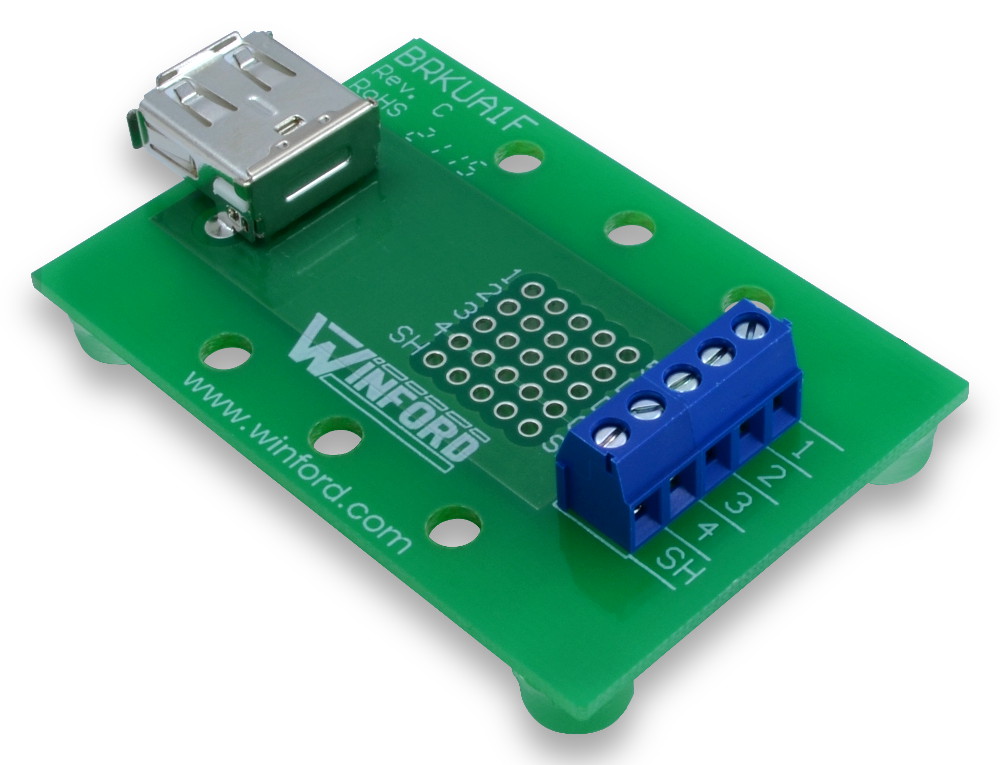
If you need to wire up a prototype, create a custom debug cable, or connect a logic analyzer to communications link, breakout boards are a real time saver. I have used SchmartBoards' JTAG board in the past, another supplier I came across is Winford Engineering.  They have breakout boards for USB, modular jacks, 0.1" headers and DB connectors.


Using boards like these, you can quickly build almost any prototype for development or debug purposes. For the processor and memory, you can use a development board from the processor manufacturer.  There are hundreds of development boards available for various processors.  For some examples, here is a list of low cost demo boards from Microchip, here are boards from Cypress, a list of Blackfin boards from Analog Devices and development kits and boards from Texas Instruments. I used a PICkit 2 28-Pin demo board with an RF module for a recent project.

If you can't find a development board configured correctly, SchmartBoards will support hand soldering many common chip formats, including SMT devices, and even BGAs.  If you aren't confident you can hand solder a component yourself, SchmartBoards will solder your IC for you for a $3.00 charge.


Monday, January 3, 2011

Microchip's new IDE available in beta

Microchip has released a beta of MPLAB® X Integrated Development Environment to replace the Windows-only MPLAB 8.  MPLAB X was developed using NetBeans and the redesign was a major effort by the Microchip developers.  The new development tool will run on Windows, Linux, and MAC operating systems, giving users the same interface and functionality across platforms.

Monday, October 4, 2010

Microsemi On Embedded Buying Spree, Aquires Actel

Microsemi announced its acquisition of Actel today, the latest in a series of embedded buys.  Microsemi's growth is creating a new leader in high-end embedded markets including military, wireless, and mobile phones. See the press release for the Actel acquisition for more details.

Other recent acquisitions include mobile wireless and security chip companies.  Last month it was VT Silicon and Arxan Defense Systems, earlier in the year it was White Electronic Designs.